How to Set Up 365Cam App for CCTV Monitoring – A Complete Guide
Monitoring CCTV cameras remotely is an essential part of maintaining security for your home, office, or other premises. With the rise of smart surveillance systems, it’s easier than ever to access live footage, review recordings, and even control cameras from your smartphone or tablet. One of the best tools for remote surveillance is the 365Cam app, which allows users to setup, monitor and manage CCTV cameras with ease.
In this detailed guide, we will walk you through the process of setting up the 365Cam app to monitor your CCTV cameras. Whether you’re new to surveillance systems or looking for a more efficient way to access your footage remotely, this guide will provide all the information you need to get started.
What is the 365Cam App?
Before we jump into the setup process, let’s take a quick look at what the 365Cam app offers. The 365Cam app is a free mobile application designed for remote monitoring of IP cameras and CCTV cameras. Available on both Android and iOS, the app provides an easy-to-use interface that allows you to access live video streams, record footage, take snapshots, and receive alerts—all from your smartphone or tablet.
The app is compatible with a wide range of CCTV cameras and other surveillance systems, offering flexible monitoring options for both personal and business use. By using the 365Cam app, you can ensure that your property is safe and secure, no matter where you are.
Why Use the 365Cam App for CCTV Monitoring?
There are many reasons why the 365Cam app is a great choice for monitoring CCTV cameras:
Remote Monitoring: Access live footage from anywhere in the world as long as you have an internet connection.
Snapshot & Video Recording: Capture images and record video footage directly from the app.
Motion Detection Alerts: Get instant notifications if your camera detects movement, ensuring you never miss an important event.
Multiple Camera Support: Manage and monitor multiple CCTV cameras at once, making it perfect for larger properties or businesses.
Easy Setup: The app is designed to be simple and user-friendly, so you don’t need to be tech-savvy to get started.
Free to Use: The 365Cam app is completely free to download and use, making it an affordable option for anyone looking to monitor their CCTV cameras remotely.
Now, let’s move on to the steps for setting up the 365Cam app to monitor your CCTV cameras.
Steps to Set Up 365Cam App for CCTV Monitoring
Step 1: Download the 365Cam App
To start, you’ll need to download and install the 365Cam app on your smartphone or tablet. The app is available for both Android and iOS devices.
For Android:
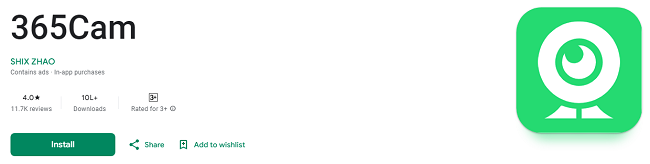
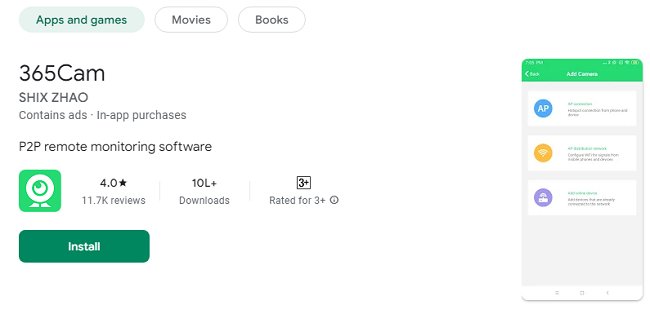
Open the Google Play Store on your Android device.
In the search bar, type “365Cam.”
Find the app in the search results and tap on it.
Tap the Install button to download and install the app on your device.
Once installed, tap Open to launch the app.
For iOS:
Open the App Store on your iOS device.
Search for "365Cam" in the search bar.
Find the app and tap Get to download it.
Once downloaded, tap Open to start using the app.
Step 2: Create a 365Cam Account
Once the app is installed, you will need to create an account to use its features. Follow these steps:
Open the 365Cam App: Tap the app icon to open it.
Sign Up: If you’re a new user, you’ll need to create an account. Tap the Sign Up button and enter your details, including your email address, username, and password.
Verify Your Email: You may receive an email verification link. Open your inbox, find the verification email, and click on the link to verify your account.
Log In: After verifying your email, return to the app and log in using your newly created credentials.
How to Connect Your CCTV Camera to the 365Cam App>
To monitor your CCTV camera(s) remotely, you’ll need to connect them to the 365Cam app. This process will vary depending on your camera's type, but here’s a general guide:
1. Prepare Your CCTV Camera
Before connecting the CCTV camera to the app, make sure that it is powered on and connected to the internet. If your camera uses Wi-Fi, ensure that it’s connected to the same Wi-Fi network as your mobile device. If the camera uses an Ethernet cable, ensure it’s properly connected to your router.
2. Add Device in the 365Cam App
Now that your camera is ready, open the 365Cam app and follow these steps to add it:
Tap "Add Device": Once logged in, tap the Add Device button on the home screen or within the device management section.
Choose Camera Type: Select your camera type from the available options. The app supports various models, including those using P2P (Peer-to-Peer) technology, which makes it easier to connect without the need for complicated settings.
Scan QR Code: Most CCTV cameras come with a unique QR code for easy setup. Use the app’s built-in QR scanner to scan the QR code located on your camera or in the camera’s user manual.
Manual Input: If your camera doesn’t have a QR code, you can manually enter the camera’s UID (unique device identifier) and other details such as IP address or serial number.
Connect the Camera: Once the camera details are entered, tap Connect. The app will attempt to establish a connection with your CCTV camera.
Test the Feed: After the camera is connected, you should see a live video feed from your CCTV camera on the app’s screen. If everything looks good, you can proceed to the next step.
Configure Your Camera Settings
Once your camera is connected, it’s time to configure its settings. This ensures that your camera works according to your preferences and that you’re getting the most out of its features.
Set Video Resolution: You can adjust the resolution of the video feed, depending on whether you want a higher-quality stream or prefer to save bandwidth and data. Choose a resolution that suits your needs.
Enable Motion Detection: Turn on motion detection if your CCTV camera supports it. This will allow the app to send you notifications whenever the camera detects movement in its field of view.
Configure Recording Settings: If you want the app to record video, set up the recording options. You can choose to record continuously or only when motion is detected.
Set Alarm Notifications: Enable push notifications for motion detection and other alerts. This way, you’ll receive instant notifications whenever something important happens.
Adjust Audio Settings: If your camera has a built-in microphone or speaker, you can enable or disable audio recording or two-way communication from within the app.
Monitor Your CCTV Cameras Remotely
Once everything is set up, you can begin monitoring your CCTV cameras remotely. Here’s how you can use the 365Cam app to access your surveillance footage:
Live Video Preview: Open the app and tap on the camera feed to view the live stream. You’ll be able to see real-time video from your CCTV camera, no matter where you are.
Snapshot: If you want to capture a still image from the live video feed, simply tap the snapshot button. This can be useful for documenting specific events or incidents.
Record Video: You can also tap the record button to start recording video directly from the live feed. This is useful if you want to save footage for later review.
Remote Playback: If your CCTV camera supports recording, you can go back and review previously recorded footage. The app lets you access recorded video at any time, so you can easily check what happened earlier.
Multiple Camera Management: If you have multiple cameras set up, you can monitor all of them from within the app. You can switch between different camera feeds or view multiple cameras on the same screen.
Troubleshooting Tips
While setting up and using the 365Cam app is generally straightforward, there may be a few common issues. Here are some troubleshooting tips:
Camera Not Connecting: If the app can’t connect to your CCTV camera, check the camera’s Wi-Fi or Ethernet connection. Make sure the camera is powered on and connected to the correct network.
No Video Feed: Ensure the app has the necessary permissions to access the camera feed, and check that your internet connection is stable.
Motion Detection Not Working: If you aren’t receiving motion alerts, make sure the motion detection settings are enabled in both the app and the camera’s settings.
App Crashing: If the app crashes frequently, try restarting your device and updating the app to the latest version available in the App Store or Google Play Store.
Conclusion
The 365Cam app provides a powerful, easy-to-use solution for remotely monitoring your CCTV cameras. Whether you’re keeping an eye on your home, office, or business, the app’s features—such as live video streaming, motion detection, and remote playback—make it an excellent choice for staying connected to your security system at all times. By following the steps outlined in this guide, you can set up the app and start monitoring your CCTV cameras with ease.
Download the 365Cam app today, and enjoy a safer, more secure environment with the convenience of remote camera monitoring right at your fingertips.
Trending Now
Updates